---
title: "Run JupyterLab on your own VM"
description: "Run JupyterLab on exe.dev: private notebooks behind your exe.dev login, Python environments on a persistent disk, and Claude in the sidebar."
url: https://exe-staging.dev/deploy/jupyter
category: "Developer tools"
updated: 2026-11-16
---
# Run JupyterLab on your own VM
Private notebooks on a VM that keeps your data. No tokens.
- **Software:** JupyterLab (https://jupyter.org)
- **Source:** https://github.com/jupyterlab/jupyterlab
- **License:** BSD-3-Clause
- **Time:** 10 minutes
- **Example VM name:** `my-jupyter` (yours will differ; on the VM, `hostname` prints it)
- **Machine-readable:** https://exe-staging.dev/deploy/jupyter/manifest.json
## What you get
- JupyterLab at your VM's private URL, signed in with exe.dev. No token or password.
- A Python 3.13 kernel with pandas and matplotlib, plus a recipe for more environments.
- Claude, Codex, and Jupyternaut in the chat panel; Claude edits and runs your notebooks.
- Model calls from notebooks with the OpenAI SDK, without an API key.
- Real-time collaboration, so edits by agents and teammates show up as they happen.
- Starts again after a reboot; nightly backups of notebooks, chats, and package lists.
Running on the VM:
- **JupyterLab 4.6**: Installed with uv, run by systemd, port 8000, data in `~/notebooks`
- **Python 3.13 kernel**: `~/envs/data`, with pandas and matplotlib; add more environments, data in `~/envs`
- **Jupyter AI 3.2**: Claude, Codex, and Jupyternaut in the sidebar, through exe.dev's LLM gateway
- **exe.dev login**: Signs you in to JupyterLab; no token to copy
How it is reached:
- https://my-jupyter.exe.xyz/ (private): JupyterLab, signed in with your exe.dev account
- https://my-jupyter.exe.xyz/ (shared): Collaborators you share the VM with, editing alongside you
## Deploy with Shelley
Open https://exe-staging.dev/new?prompt=Set%20up%20JupyterLab%20on%20this%20VM%20by%20following%20the%20exe.dev%20recipe%20at%20https%3A%2F%2Fexe-staging.dev%2Fdeploy%2Fjupyter.md%20from%20top%20to%20bottom.%0A%0AThe%20recipe%27s%20example%20VM%20name%20is%20my-jupyter.%20This%20VM%27s%20name%20is%20the%20output%20of%20%60hostname%60%3A%20use%20it%20wherever%20the%20recipe%20writes%20my-jupyter.%20Skip%20the%20step%20that%20creates%20the%20VM%3B%20you%20are%20on%20it.%0A%0AYou%20are%20done%20when%20all%20of%20these%20are%20true.%20Check%20each%20one%20yourself%3A%0A-%20JupyterLab%20at%20your%20VM%27s%20private%20URL%2C%20signed%20in%20with%20exe.dev.%20No%20token%20or%20password.%0A-%20A%20Python%203.13%20kernel%20with%20pandas%20and%20matplotlib%2C%20plus%20a%20recipe%20for%20more%20environments.%0A-%20Claude%2C%20Codex%2C%20and%20Jupyternaut%20in%20the%20chat%20panel%3B%20Claude%20edits%20and%20runs%20your%20notebooks.%0A-%20Model%20calls%20from%20notebooks%20with%20the%20OpenAI%20SDK%2C%20without%20an%20API%20key.%0A-%20Real-time%20collaboration%2C%20so%20edits%20by%20agents%20and%20teammates%20show%20up%20as%20they%20happen.%0A-%20Starts%20again%20after%20a%20reboot%3B%20nightly%20backups%20of%20notebooks%2C%20chats%2C%20and%20package%20lists.%0A%0ARead%20the%20whole%20recipe%2C%20including%20the%20closed%20details.%20For%20initial%20setup%2C%0Afollow%20%22Install%20by%20hand%22%20first%2C%20skipping%20VM%20creation%20and%20SSH%3A%20JupyterLab%2C%0Athe%20data%20kernel%2C%20the%20config%2C%20the%20service%2C%20the%20checks%2C%20the%20AI%20agents%2C%20the%0Abackup%20timer%2C%20and%20the%20backup%20check.%20Those%20checks%20are%20enough%3B%20don%27t%20install%0Aextra%20tools%20or%20browsers%20to%20test%20further.%20The%20walkthrough%20at%20the%20top%20is%20for%0Athe%20owner%20afterwards.%20Do%20not%20run%20Restore%2C%20Update%2C%20%22Add%20another%0Aenvironment%22%2C%20or%20JupyterHub.%0AWork%20as%20exedev.%20JupyterLab%20serves%20port%208000%2C%20the%20VM%27s%20main%20proxy%20port.%0ADon%27t%20share%20the%20VM%2C%20and%20never%20make%20it%20public.%20Leave%20Jupyter%27s%20token%20on%3B%0Anever%20print%20it%20in%20your%20reply.%0AKeep%20test%20prompts%20to%20a%20word%20or%20two.%20Delete%20the%20check%20notebook%20afterwards.%0AVerify%20jupyter.service%20is%20enabled%3B%20do%20not%20reboot.%0AFinish%20by%20giving%20the%20owner%20https%3A%2F%2F%3Cvm%3E.exe.xyz%2F.%0A%0AFinish%20with%20the%20URLs%20I%20should%20open%20and%20these%20commands%2C%20which%20only%20I%20can%20run%2C%20from%20my%20own%20computer%20%28with%20this%20VM%27s%20name%20in%20them%29%3A%0A%20%20ssh%20exe.dev%20share%20add%20my-jupyter%20teammate%40example.com%0A to create a VM whose agent, Shelley, follows this recipe. From a terminal:
```sh
curl -fsSL https://exe-staging.dev/deploy/jupyter/prompt.txt | ssh exe.dev new --prompt=/dev/stdin
```
Then, on your own computer:
```sh
ssh exe.dev share add my-jupyter teammate@example.com
```
Or follow the steps below by hand.
JupyterLab is the notebook most data work starts in: code, tables, and
charts side by side in `.ipynb` files that anyone can open. Here it runs on
your own exe.dev VM, with a disk that keeps your notebooks, data, and Python
environments between sessions. Your exe.dev login is the sign-in, so there's
no token to copy around.
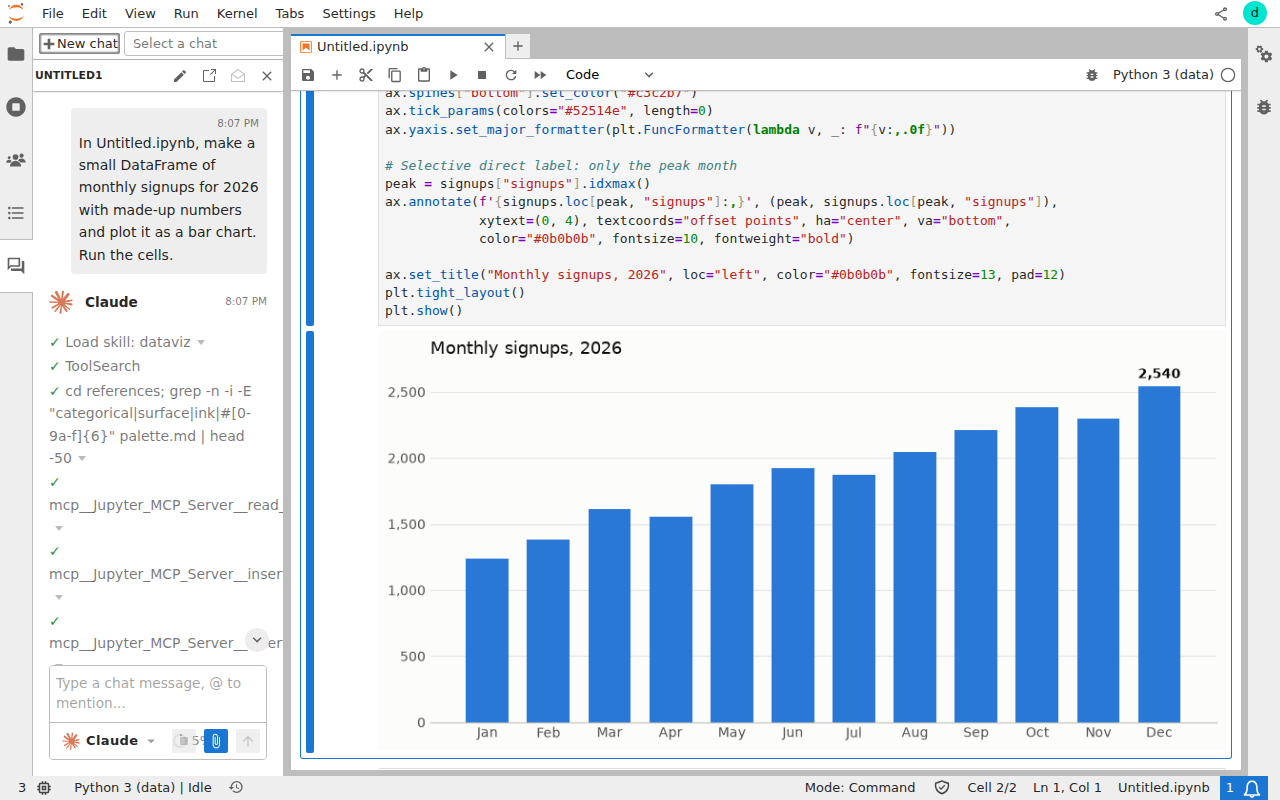
Jupyter AI adds a chat panel where Claude, Codex, or Jupyternaut answer
questions and edit and run your notebooks, with models from exe.dev's
[LLM gateway](/docs/integrations-llm) and no API keys anywhere.
Claude in Jupyter AI's chat, after writing and running the notebook on the right.
## Open JupyterLab
Open the URL Shelley gives you. It'll look like
`https://my-jupyter.exe.xyz/`. Sign in to exe.dev if you're asked,
and JupyterLab opens straight away; the initial in the top right corner is
yours.
Click **Python 3 (data)** in the Launcher for a new notebook. The file
browser on the left shows `~/notebooks` on the VM; drag files onto it to
upload data. Notebooks save to the VM's disk, and stay there when you close
the tab. A running kernel keeps its variables until you restart it or the VM
restarts; the **Running** panel (the square icon on the left) shuts down
kernels you're done with.
## Install packages
The kernel runs in `~/envs/data`, a Python 3.13 environment with pandas,
matplotlib, and the OpenAI SDK. Install more from a notebook cell:
```python
%pip install polars duckdb
```
or from a terminal (**File → New → Terminal**) on the VM, with
[uv](https://docs.astral.sh/uv/), which is faster:
```bash
uv pip install --python ~/envs/data polars duckdb
```
Then restart the kernel (**Kernel → Restart Kernel**). Packages stay
installed on the disk. JupyterLab itself lives in a separate environment,
`~/jupyter`, so nothing you install in a notebook can break it.
Need a different Python or a project whose packages clash with these?
[Add another environment](#more-environments); each one shows up in the
Launcher as its own kernel.
## Ask AI for help
Open the chat panel (the speech bubbles on the left) and click
**New chat**. Pick who answers in the menu under the message box:
- **Claude** is Claude Code. It reads your notebooks, writes cells, runs
them, and reads the output, like a colleague at the keyboard. Ask it to
"load sales.csv in analysis.ipynb and chart revenue by month".
- **Codex** is OpenAI's coding agent, with the same powers.
- **Jupyternaut** is a plain chat assistant, good for quick questions.
All three use exe.dev's LLM gateway, so there's no key to paste. Claude and
Codex act on their own, without asking first, and run code as your VM's user;
that's what makes them useful, and it's why the VM should only be shared with
people you trust. Chats are saved as `.chat` files next to your notebooks.
Notebooks can call models too. The OpenAI SDK finds the gateway by itself:
```python
from openai import OpenAI
reply = OpenAI().responses.create(model="gpt-5.4-mini", input="Name three plot types.")
print(reply.output_text)
```
The [gateway's model list](https://llm.int.exe.xyz/models.json) has the
other names. For Claude, `pip install anthropic` and use `Anthropic()` the
same way.
Shelley, on your VM's exe.dev page, can work on notebooks too. Ask it to
"clean up ~/notebooks/analysis.ipynb", and if you have the notebook open,
you watch its changes arrive.
## Work with your team
On your computer, share the VM:
```bash
ssh exe.dev share add my-jupyter teammate@example.com
```
They get an email invitation. Once signed in to exe.dev, they open the same
URL and land in the same JupyterLab, signed in as themselves. Open
notebooks update live for everyone, with each person's cursor and name
shown, and the people icon on the left lists who's there.
> [!WARNING]
> Everyone you share with can run any code on the VM, read every file on it,
> and use your LLM allocation. Share with people you'd give a shell, and
> remove them with `ssh exe.dev share remove my-jupyter teammate@example.com`.
Never make this VM public with `share set-public`: anyone with an exe.dev
account could then sign in and run code on it. To show results to people
who shouldn't run code, export a notebook (**File → Save and
Export Notebook As → HTML**) and send the file.
### Separate accounts for each person
This setup is one workspace for one person or a small trusted group. If each
person needs their own files, and must not see anyone else's, the simplest
answer on exe.dev is a VM each: everyone runs this recipe on their own VM.
[JupyterHub](https://jupyterhub.readthedocs.io) is the classic answer for a
larger group on one server, with a Linux account and notebook server per
person; exe.dev's login can sign people in through the same `X-ExeDev-Email`
header (see [Login with exe](/docs/login-with-exe)). It's a bigger setup
than this page covers.
## CPU, memory, and disk
exe.dev VMs have no GPU. The default VM has 2 vCPUs, 8 GB of memory, and a
25 GB disk, which is plenty for pandas, scikit-learn, and plotting on a few
million rows. Each kernel keeps its data in memory, so a large DataFrame open
in three notebooks costs three times. If a kernel dies while loading data, it
ran out of memory: shut down idle kernels, or on your computer, give the VM
more room:
```bash
ssh exe.dev resize my-jupyter --cpu=4 --memory=16GB
ssh exe.dev resize my-jupyter --disk=50GB
```
The disk is persistent, so datasets you download stay put. For data that
belongs in a database, see [Postgres](/deploy/postgres) or
[SQLite](/deploy/sqlite).
## Keep your notebooks
Backups run nightly into `~/backups`. Each one holds your notebooks, chats,
JupyterLab settings, kernels, and the package list of every environment
(environments are reinstalled from these lists, not copied). Keep a copy
**off the VM**. On your computer:
```bash
scp -r my-jupyter.exe.xyz:backups .
```
For version history, keep notebooks in a Git repository. With exe.dev's
[GitHub integration](/docs/integrations-github) the VM can push and pull
without a key on it:
```bash
ssh exe.dev integrations add github --name analysis --repository you/analysis --attach vm:my-jupyter
```
Then, on the VM, `cd ~/notebooks && git clone https://github.int.exe.xyz/you/analysis.git`.
Something stuck? See [Something not working?](#troubleshooting), or ask
Shelley.
## The nuts and bolts
Happy clicking Deploy? You can stop here. These are the same setup steps
Shelley follows, plus the maintenance commands for later. We tested them
with JupyterLab 4.6.6, Jupyter Server 2.21.1, Jupyter AI 3.2.0, ipykernel
7.4.0, and Python 3.13 on exe.dev's default Ubuntu 24.04 image.
Install by hand
### Create a VM
On your computer (pick another name if `my-jupyter` is taken):
```bash
ssh exe.dev new --name=my-jupyter
ssh my-jupyter.exe.xyz
```
All remaining installation commands run **on the VM**, as `exedev`.
### Install JupyterLab
JupyterLab gets its own environment in `~/jupyter`, with Jupyter AI and its
real-time collaboration extra. The version ranges take patch releases but
not new minor versions. uv downloads Python 3.13 if the VM doesn't have it.
```bash
mkdir -p ~/notebooks ~/envs ~/.jupyter ~/bin
uv venv --python 3.13 ~/jupyter
uv pip install --python ~/jupyter "jupyterlab>=4.6,<4.7" "jupyter-ai[jupyternaut,rtc]>=3.2,<3.3"
~/jupyter/bin/jupyter --version | grep -E 'jupyterlab|jupyter_server'
```
Expect `jupyterlab : 4.6.x` and `jupyter_server : 2.x`. The environment
is about 600 MB.
### Create the data kernel
Notebooks run in a separate environment, so packages installed from
notebooks never touch JupyterLab. `--seed` adds pip, so `%pip install` works
in notebooks.
```bash
uv venv --seed --python 3.13 ~/envs/data
uv pip install --python ~/envs/data ipykernel pandas matplotlib openai
~/envs/data/bin/python -m ipykernel install --user --name python3 --display-name "Python 3 (data)"
grep -q JUPYTER_PREFER_ENV_PATH ~/.profile || cat >> ~/.profile <<'EOF'
# Prefer kernels in ~/.local/share/jupyter (see jupyter.service).
export JUPYTER_PREFER_ENV_PATH=0
EOF
```
The kernel is named `python3`, Jupyter's default, so it replaces the bare
kernel that comes with JupyterLab's own environment; new notebooks, and
notebooks from elsewhere, use it. Jupyter normally prefers kernels from the
environment it runs in; `JUPYTER_PREFER_ENV_PATH=0` makes yours win, both
in the service below and in your shell.
### Configure JupyterLab
JupyterLab listens on port 8000, which exe.dev's proxy serves at
`https://.exe.xyz/` to you and the people you share the VM with. The proxy sends each request with the visitor's
email in the `X-ExeDev-Email` header, and replaces any such header a browser
sends (see [Login with exe](/docs/login-with-exe)). A small identity provider
signs people in from that header. Jupyter's random token stays on for
everything else, such as requests from other programs on the VM.
```bash
cat > ~/.jupyter/jupyter_server_config.py < [!WARNING]
> Keep the VM private. With `share set-public`, everyone with an exe.dev
> account would get the header, and with it a shell on your VM.
### Start JupyterLab with systemd
The service gives JupyterLab, its kernels, and the AI agents the LLM
gateway's address. The gateway needs no key; the placeholders only keep
SDKs from complaining.
```bash
sudo tee /etc/systemd/system/jupyter.service >/dev/null < ~/bin/jupyter-backup <<'EOF'
#!/usr/bin/env bash
# Back up notebooks, chats, Jupyter settings, kernels, and the package
# list of every environment, to ~/backups. Keeps the 14 newest.
set -euo pipefail
umask 077
cd "$HOME"
mkdir -p backups .jupyter/env-lists
# Environments are rebuilt from these lists rather than copied.
uv pip freeze --python jupyter > .jupyter/env-lists/jupyterlab.txt
for env in envs/*/; do
uv pip freeze --python "$env" > ".jupyter/env-lists/$(basename "$env").txt"
done
out="backups/jupyter-$(date -u +%Y%m%d-%H%M%S).tar.gz"
tar -czf "$out.part" --exclude=.ipynb_checkpoints \
notebooks .jupyter .local/share/jupyter/kernels .local/share/jupyter/jupyter_ai
mv "$out.part" "$out"
ls -1t backups/jupyter-*.tar.gz | tail -n +15 | xargs -r rm --
echo "$HOME/$out"
EOF
chmod +x ~/bin/jupyter-backup
```
Schedule it for 03:30 UTC (or so), then take a first backup:
```bash
sudo tee /etc/systemd/system/jupyter-backup.service >/dev/null </dev/null <<'EOF'
[Unit]
Description=Back up notebooks every night
[Timer]
OnCalendar=*-*-* 03:30:00
RandomizedDelaySec=30m
Persistent=true
[Install]
WantedBy=timers.target
EOF
sudo systemctl daemon-reload
sudo systemctl enable --now jupyter-backup.timer
sudo systemctl start jupyter-backup.service
systemctl list-timers jupyter-backup.timer
ls -lh ~/backups
```
Check that the timer has a next run and the directory has a tarball. For
failures: `journalctl -u jupyter-backup.service`.
### Test a backup
List the newest backup's contents without unpacking it:
```bash
latest=$(ls -1t ~/backups/jupyter-*.tar.gz | head -n 1)
tar -tzf "$latest" | grep -E 'jupyter_server_config.py|env-lists/|kernels/python3/kernel.json'
```
Expect the config file, `env-lists/jupyterlab.txt` and `env-lists/data.txt`,
and the kernel definition.
Installation done. Leave sharing to the owner; continue with
[Open JupyterLab](#open-jupyterlab).
Add another environment
Each environment is a kernel in the Launcher. On the VM, this makes a
Python 3.12 environment for machine learning; change the name, Python
version, and packages to suit:
```bash
uv venv --seed --python 3.12 ~/envs/ml
uv pip install --python ~/envs/ml ipykernel scikit-learn
~/envs/ml/bin/python -m ipykernel install --user --name ml --display-name "Python 3.12 (ml)"
```
Reload JupyterLab in the browser and **Python 3.12 (ml)** appears in the
Launcher; switch an open notebook with **Kernel → Change Kernel**. No
restart is needed. For a project with its own `pyproject.toml`, use its
`.venv` the same way: `uv add --dev ipykernel` in the project, then
`.venv/bin/python -m ipykernel install --user --name myproject`.
To remove one: `~/jupyter/bin/jupyter kernelspec remove ml`, then
`rm -rf ~/envs/ml`. Other languages work too, through their own Jupyter
kernels, such as [IRkernel](https://irkernel.github.io) for R.
Back up and restore
On the VM, `~/bin/jupyter-backup` makes an extra backup and prints its
path. Copy backups off the VM as shown in
[Keep your notebooks](#keep-your-notebooks).
### Restore
On a new VM, follow [Install by hand](#create-the-vm) up to and including
**Create the data kernel**. Then, on your computer, copy your backup over:
```bash
scp jupyter-20261116-033012.tar.gz my-jupyter.exe.xyz:
```
Use your backup's actual filename here and below. On the VM, stop JupyterLab
if it runs, unpack, and reinstall each environment's packages from its list:
```bash
sudo systemctl stop jupyter.service 2>/dev/null || true
cd ~ && tar -xzf ~/jupyter-20261116-033012.tar.gz
for list in ~/.jupyter/env-lists/*.txt; do
name=$(basename "$list" .txt)
[ "$name" = jupyterlab ] && continue
[ -d ~/envs/"$name" ] || uv venv --seed --python 3.13 ~/envs/"$name"
uv pip install --python ~/envs/"$name" -r "$list"
done
```
An environment made with another Python version, like `ml` above, needs
`uv venv` with that version before the loop. Then set up the service, the
agents, and backups as in [Install by hand](#start-jupyterlab-with-systemd).
The restored config keeps the old VM's name only in a comment, so it works
as is.
Update JupyterLab
On the VM, back up, then upgrade within the same minor versions and restart:
```bash
~/bin/jupyter-backup
uv pip install --python ~/jupyter --upgrade "jupyterlab>=4.6,<4.7" "jupyter-ai[jupyternaut,rtc]>=3.2,<3.3"
sudo systemctl restart jupyter.service
until curl -s -o /dev/null http://localhost:8000/api; do sleep 2; done
~/jupyter/bin/jupyter --version | grep -E 'jupyterlab|jupyter_server'
```
Reload the page with Ctrl+Shift+R (Cmd+Shift+R on a Mac). For a new minor
version, such as JupyterLab 4.7, read the
[changelog](https://jupyterlab.readthedocs.io/en/latest/getting_started/changelog.html)
and change the version ranges. If something breaks, reinstall the old
versions from `~/.jupyter/env-lists/jupyterlab.txt`:
`uv pip sync --python ~/jupyter ~/.jupyter/env-lists/jupyterlab.txt`.
Kernel environments are yours to update: `uv pip install --python ~/envs/data
--upgrade pandas`, then restart the kernel. The agents update with
`sudo npm update -g @agentclientprotocol/claude-agent-acp @agentclientprotocol/codex-acp`.
Something not working?
On the VM:
```bash
systemctl status jupyter.service
journalctl -u jupyter.service -n 100 --no-pager
```
- **The page doesn't load (502):** right after a restart, JupyterLab takes
up to 30 seconds to start. If it never comes, check the proxy still points
at port 8000: on your computer, `ssh exe.dev share port my-jupyter 8000`.
- **JupyterLab asks for a token or password:** the request didn't come through
exe.dev's proxy with your login. Open `https://.exe.xyz/` itself,
not a link to `localhost` or the VM's IP address.
- **`ModuleNotFoundError` for a package you installed:** the notebook uses
another kernel. Check the kernel name in the top right corner, and install
into that environment. On the command line, `jupyter execute` and
`jupyter nbconvert --execute` need `JUPYTER_PREFER_ENV_PATH=0`; a login
shell has it from `~/.profile`.
- **The kernel dies or restarts by itself:** it ran out of memory. Check
`free -h`, shut down idle kernels, or resize the VM (see
[CPU, memory, and disk](#cpu-memory-and-disk)).
- **No Claude or Codex in the chat menu:** check `command -v claude-agent-acp
codex-acp`, then restart JupyterLab.
- **An agent's answer fails with an authentication error:** run
`exeuntu configure claude` or `exeuntu configure codex` again, then restart
JupyterLab.
- **Jupyternaut answers with an error:** open **Settings → Jupyternaut Settings** and
pick a model from the gateway's [model list](https://llm.int.exe.xyz/models.json),
written as `openai/`, such as `openai/gpt-5.4-mini`.
- **Disk full:** check `df -h /` and `du -sh ~/envs/* ~/notebooks`; uv's cache
can go with `uv cache clean`.
## Frequently asked questions
### Do I need Jupyter's token or a password?
No. exe.dev's proxy only lets in people you've shared the VM with, and tells JupyterLab who they are, so it signs them in. The token is still on for anything that doesn't come through the proxy; on the VM, `~/jupyter/bin/jupyter server list` shows it.
### Is there a GPU?
No. exe.dev VMs are CPU only. Pandas, scikit-learn, plotting, and small models are fine; training big neural networks isn't. For more memory or cores, `ssh exe.dev resize my-jupyter --cpu=4 --memory=16GB`.
### How much does it cost?
JupyterLab and Jupyter AI are free. You pay for your [VM plan](https://exe.dev/pricing), and AI chats and model calls from notebooks use your exe.dev [LLM allocation](/docs/integrations-llm).
### Can teammates work in the same notebook?
Yes. Share the VM and they open the same URL; everyone sees each other's edits and cursors live. Their code runs as your VM's user, so only share with people you'd give a shell.
### Jupyter or marimo?
Jupyter if you want the standard `.ipynb` format, its huge ecosystem of extensions and kernels, or notebooks other people will open. [marimo](/deploy/marimo) if you want reactive notebooks stored as plain Python files.
### Can I open these notebooks in VS Code or Cursor?
Yes. Connect with Remote-SSH to `my-jupyter.exe.xyz`, open `~/notebooks`, and pick `~/envs/data/bin/python` as the kernel. Or run VS Code in the browser with [code-server](/deploy/code-server).
### Where are my files, and do they survive a reboot?
On the VM's disk: notebooks in `~/notebooks`, environments in `~/envs`. They survive restarts, and a nightly backup copies notebooks, chats, and package lists into `~/backups`.
## Related
- [Spinning up a Marimo Notebook](https://exe-staging.dev/deploy/marimo.md): An open source reactive notebook
- [VS Code in your browser, with code-server](https://exe-staging.dev/deploy/code-server.md): Your editor in a tab. Your projects right where you left them.
- [Run Claude Code on a remote server](https://exe-staging.dev/deploy/claude-code.md): A computer for Claude. A breather for your laptop.
- [SQLite in production](https://exe-staging.dev/deploy/sqlite.md): One file on a real disk, streamed to your own bucket every second.
- [Self-host PostgreSQL](https://exe-staging.dev/deploy/postgres.md): Your own Postgres on a real disk, with backups you've actually restored.
- [Deploy a FastAPI app](https://exe-staging.dev/deploy/fastapi.md): Your API on a VM of its own. Push to deploy; the data stays put.